For readers who keep their notes in Obsidian
Save it for later. Keep it in your vault.
Save articles in Readplace, then bring them into Obsidian as Markdown notes. Each note holds the article's text and its AI summary once it's ready, alongside the notes you already keep.
Free plugin for Obsidian on macOS, Windows and Linux. A Readplace account is required.
From saved article to vault note
Install the plugin, connect your account, then sync.
-
1
Install Readplace
Open Readplace in Obsidian's community plugin directory, install it and enable it in your vault.
-
2
Connect your account
In Settings → Readplace, choose Sign in or Create account. Approve the connection in your browser, then choose Return to Obsidian.
-
3
Run Sync now
Your saved articles become notes in the Readplace folder. You can choose another folder for new notes in the plugin settings.
An article you can keep beside your own notes
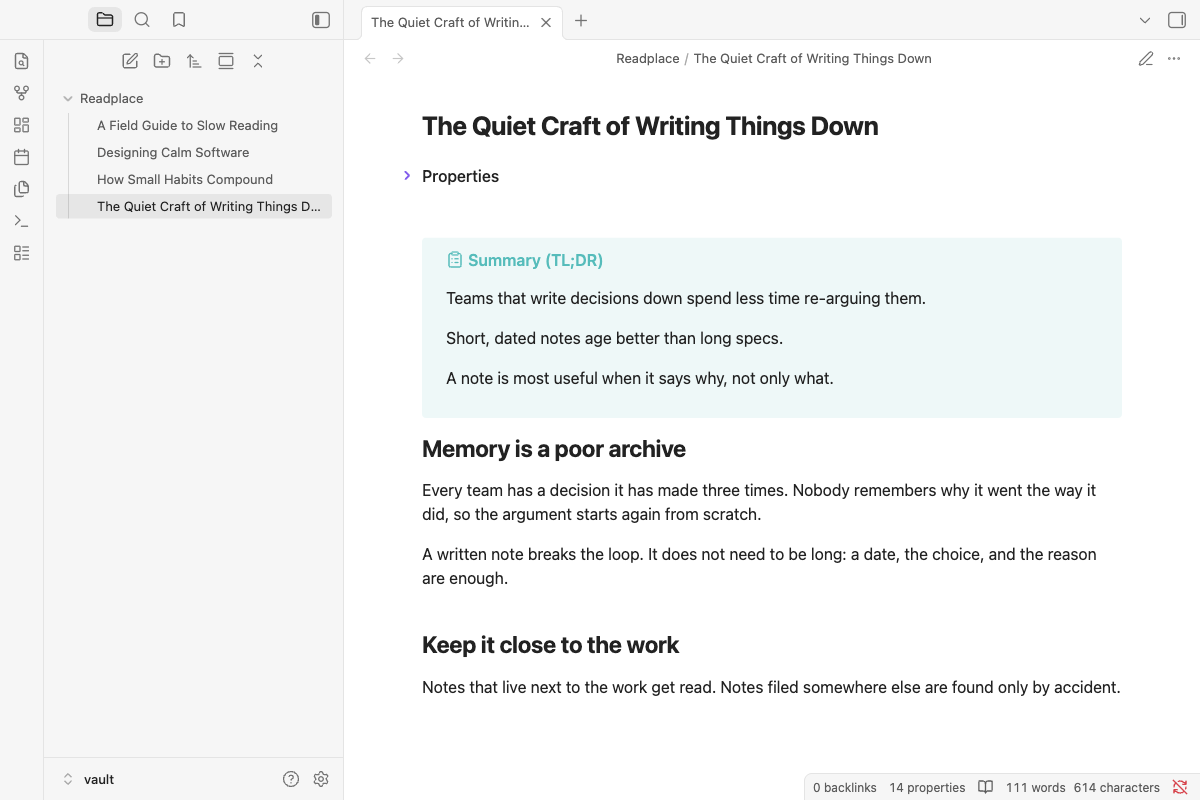
Sync brings articles in. Your edits stay yours
One note for each saved article, in a folder you choose.
The plugin reads every saved article in your Readplace account, across all readlists. It checks for changes every 60 minutes while Obsidian is open, or whenever you run Sync now.
An unchanged note can receive new article text, a completed summary or updated reading status. Once you edit a note, the plugin leaves it alone. It never replaces a file it didn't create.
Removing an article from Readplace leaves its note in your vault. Deleting a synced note in Obsidian doesn't recreate it on the next sync. Signing out leaves your notes in place too.
What this does not do
- Sync goes one way, from Readplace into Obsidian. Your edits, highlights and notes don't sync back to Readplace.
- Every saved article comes across. You can't choose a single readlist, and highlights and annotations aren't synced.
- The Markdown has no tags and no author, and a published date only when one is known.
- An article still being processed may arrive with little or no text. It fills in on a later sync only if you haven't edited the note.
- Images stay as links to their original hosts. The plugin doesn't download image files for offline use.
- This release is for desktop Obsidian. It doesn't run on Obsidian's mobile apps.
Questions
- What do I need?
- A Readplace account and Obsidian on macOS, Windows or Linux. Install Readplace from Community plugins and connect your account in the plugin settings.
- Can I edit an article after it syncs?
- Yes. The plugin checks whether you've edited a note before updating it. An edited note stays as you left it, so a later article change or summary won't be added to it.
- What access am I giving the plugin?
- The plugin only reads your articles, but the connection grants the same full account access as other Readplace apps. You can disconnect it from Connected apps in your Readplace account, or sign out in the plugin settings.
- Does it sync between devices?
- The plugin copies articles into the vault where it's installed. It doesn't provide vault sync between devices. A note moved while the plugin is off, or on another device, counts as removed and won't receive updates.
- Is the plugin free?
- Yes. Readplace has a 14-day trial with no card, then a subscription. An account that stops paying stays readable and can still sync its saved articles into Obsidian.
What it costs
The Obsidian plugin is free. Your Readplace account starts with 14 days free, no card. Then $60 a year ($5 a month, billed yearly) or $10 a month. Your saves stay readable and exportable, even if you stop paying.
After the trial, upgrading lets you keep saving new articles. If you stop paying, you can still sync the articles already saved in your account.
Start with Google, Apple or an email address. No card during the trial.
Bring your reading into your vault
Install the plugin on your desktop, or create your Readplace account now and connect it later. Get help with setup.